
Frequently Asked Questions
Filters
54 results
54 results
In your course's Settings, activate the following settings:
- Restrict view of quantitative data.
- Enable course grading scheme.
Canvas will not let you restrict view of quantitative data without creating/adding a course grading scheme.
Review our Canvas Gradebook Instructions for more detailed instructions, including how to:
- Create/edit grading schemes
- Test that students only see letter grades
Please consult the instructions here: Support (Create your new Teachly course in Canvas) – Teachly
Note:
- Make sure you set up Teachly in Canvas, using the built in tool. Do not create your Teachly instance in Teachly itself.
- TA/TFs cannot set up Teachly in Canvas. Only the faculty member or faculty coordinator can perform the initial setup.
If you need to edit any links added via the Redirect tool, e.g. you made a mistake or you rolled over course content, you will need to delete and re-add those links. Yes, there is an "Edit" option, but unfortunately it only breaks the redirect.
To delete a custom link:
- Navigate to Settings via the left-hand course navigation menu.
- Go to Apps, then View App Configurations.
- This will bring up a list of all the applications and integrations in your course.
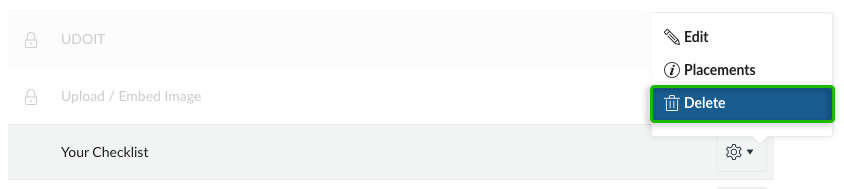
- Find the title of your custom link, then click the gear icon to the right of it.
- Note: custom links will have a gear icon to the right of its title. Other integrations will have an "i" symbol, and also a lock icon before it's title. So, you do not have to worry that you might remove something integral to the site. But, as always, good to exercise caution!
- Click "Delete" in the drop down.
- Re-add your custom link!
A useful guide for using the LRT can be found on your Gutman Library Tutorial Repository Canvas site:
Using Library Reserves at HGSE: Gutman Library Tutorial Repository 2025-26
On there you will find links for further help and support, if your question isn't addressed on the page.
Consider the difference between Groups, Sections, and Differentiation Tags.
Differentiation Tags allows instructors to create custom sets of students within a course that are:
- Hidden from students.
- Can be used to target communications via the Inbox, that is, send emails to students only within a particular set.
- Can be used to differentiate content in the Canvas site, that is, to assign Modules/Pages/Assignments only to a particular set.
- Can be used as a filter in the gradebook.
As of yet, Announcements cannot be targeted to a specific set.
Differentiation tags can be set in the People section:

For more on differentiation tags, see Instructure's FAQ: Differentiation Tags FAQ | Instructure Community
The native Canvas peer review feature is limited and difficult to set up.
We recommend using Harmonize's excellent peer review feature: Create a Peer Review Assignment – Harmonize
Feel free to contact us to set that up.
Not natively but we have written a tool to do this for you. Just send an email to canvas@gse.harvard.edu with the course name and assignment name and we'll send you a document and/or csv file with all the comments for an assignment, divided student by student.
This is because you have not set up your Okta identity verification after claiming your HarvardKey.
The instructions to do this are here:
Getting Started with Okta identity verification | HUIT
Set up Okta identity verification for new HarvardKey users | HUIT
How do I enable Third-Party Cookies?
Google Chrome
- Click the three-dot menu (⋮) in the upper-right and select Settings.
- Go to Privacy and security on the left.
- Click Third-party cookies (or, in some versions, Cookies and other site data).
- Select Allow third-party cookies.
Mozilla Firefox
- Click the menu button (☰) and select Settings.
- Click Privacy & Security on the left.
- Under Enhanced Tracking Protection, select Custom.
- Make sure the Cookies box is not checked (or set it to block only "Cross-site tracking cookies").
- For broadest compatibility, use Standard protection which allows most third-party cookies.
Microsoft Edge
- Click the three-dot menu (⋮) and select Settings.
- Go to Cookies and site permissions on the sidebar.
- Click Manage and delete cookies and site data.
- Ensure Block third-party cookies is turned off.
Safari (Mac)
- Open Safari. Go to Safari > Settings (or Preferences).
- Select the Privacy tab.
- Make sure Block all cookies is NOT checked.
- Also, for best compatibility, uncheck Prevent cross-site tracking (this is what blocks most third-party cookies).
- Note: In newer Safari versions, cross-site tracking/third-party cookies are always disabled for privacy, and you may not be able to fully enable them.
Please check out our page on your status after graduation.
This FAQ concerns the information found in the "Course Information" block by default on degree program Canvas course sites, that is, the information that looks like this:

This information cannot be edited in Canvas. This information synchronizes with the official course information housed in the my.harvard course catalog.
If information is incorrect, or needs to be updated, one must contact the Registrar's Office to request the amendment in the official record. Once updated, it will display in Canvas automatically after around an hour delay.
If you wish to show only a selection of the information, one can remove the widget that displays this information entirely and then replace it with ordinary Canvas text. To do this, merely select the image showing within the "iframe wrapper" (you need to have Cidilabs DesignPlus active) and click delete twice. The first delete will remove the widget; the second delete will remove the iframe wrapper. Pre-deletion, it should look like this:

Please take a look at our detailed guide here: Access & People Management