How do I edit custom links added to the Canvas sidebar?
If you need to edit any links added via the Redirect tool, e.g. you made a mistake or you rolled over course content, you will need to delete and re-add those links. Yes, there is an "Edit" option, but unfortunately it only breaks the redirect.
To delete a custom link:
- Navigate to Settings via the left-hand course navigation menu.
- Go to Apps, then View App Configurations.
- This will bring up a list of all the applications and integrations in your course.
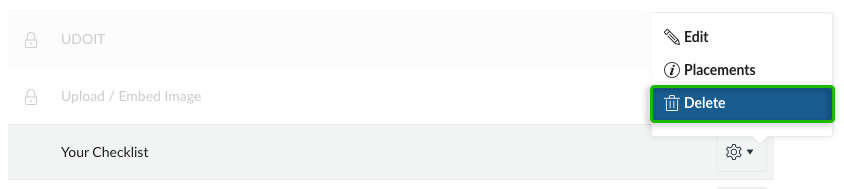
- Find the title of your custom link, then click the gear icon to the right of it.
- Note: custom links will have a gear icon to the right of its title. Other integrations will have an "i" symbol, and also a lock icon before it's title. So, you do not have to worry that you might remove something integral to the site. But, as always, good to exercise caution!
- Click "Delete" in the drop down.
- Re-add your custom link!